# Setup Dropbox to manage your screenshots on Mac OS X
> Markdown version of https://brajeshwar.com/2015/setup-dropbox-to-manage-your-screenshots-on-mac-os-x/ — 2015-03-30
There are quite a lot of Screenshot management apps for Mac OS X. I like most of them but I also like Dropbox a lot. With the Screenshot management feature from Dropbox, you can now do away with all those Screenshot apps and use the tool you already have.
First, enable Dropbox to handle your Screenshots.
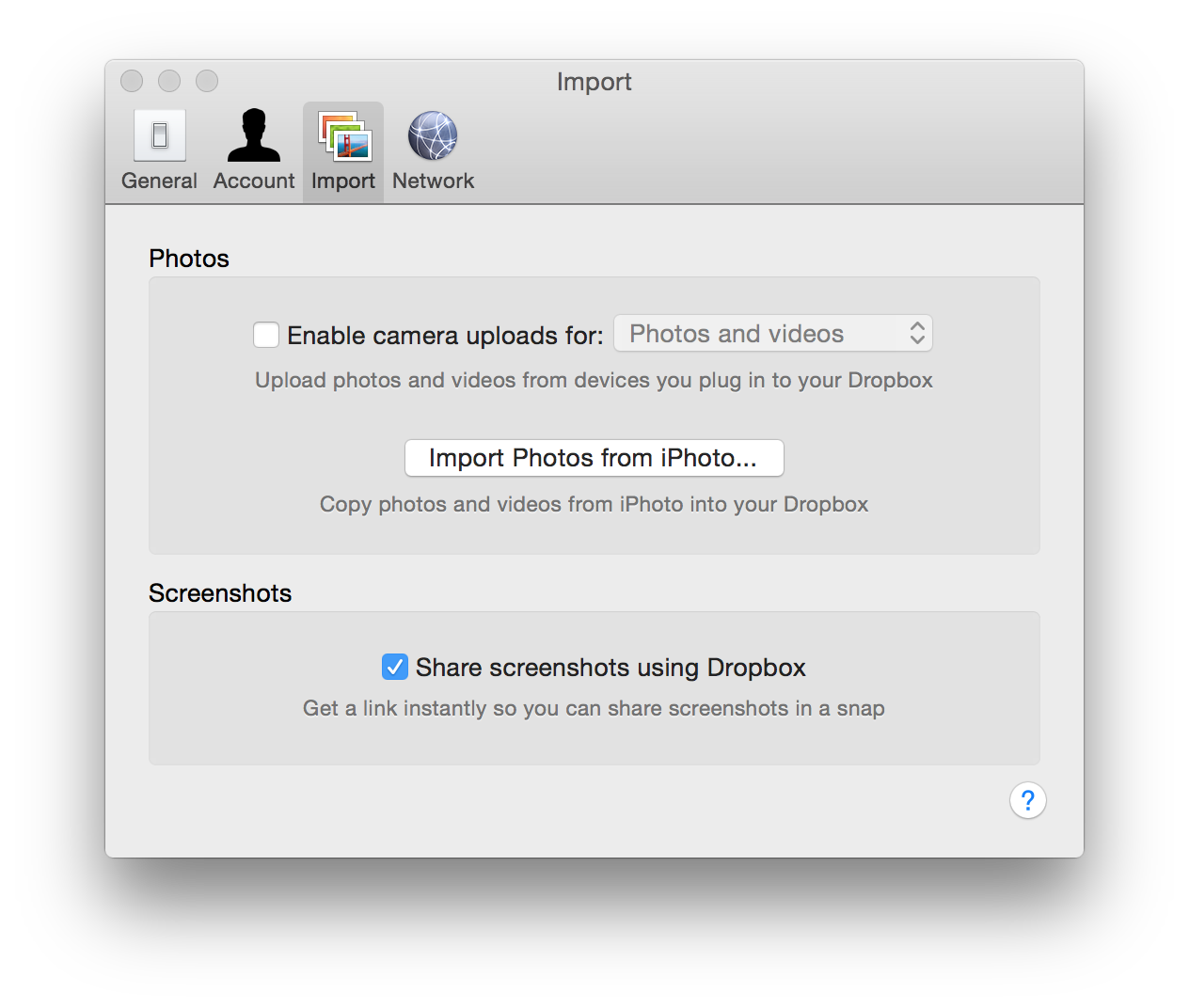 Second, drop your OS X screenshots automatically into Dropbox's Screenshot folder.
Via the Terminal
`$ defaults write com.apple.screencapture location ~/Dropbox/Screenshots/;killall SystemUIServer`
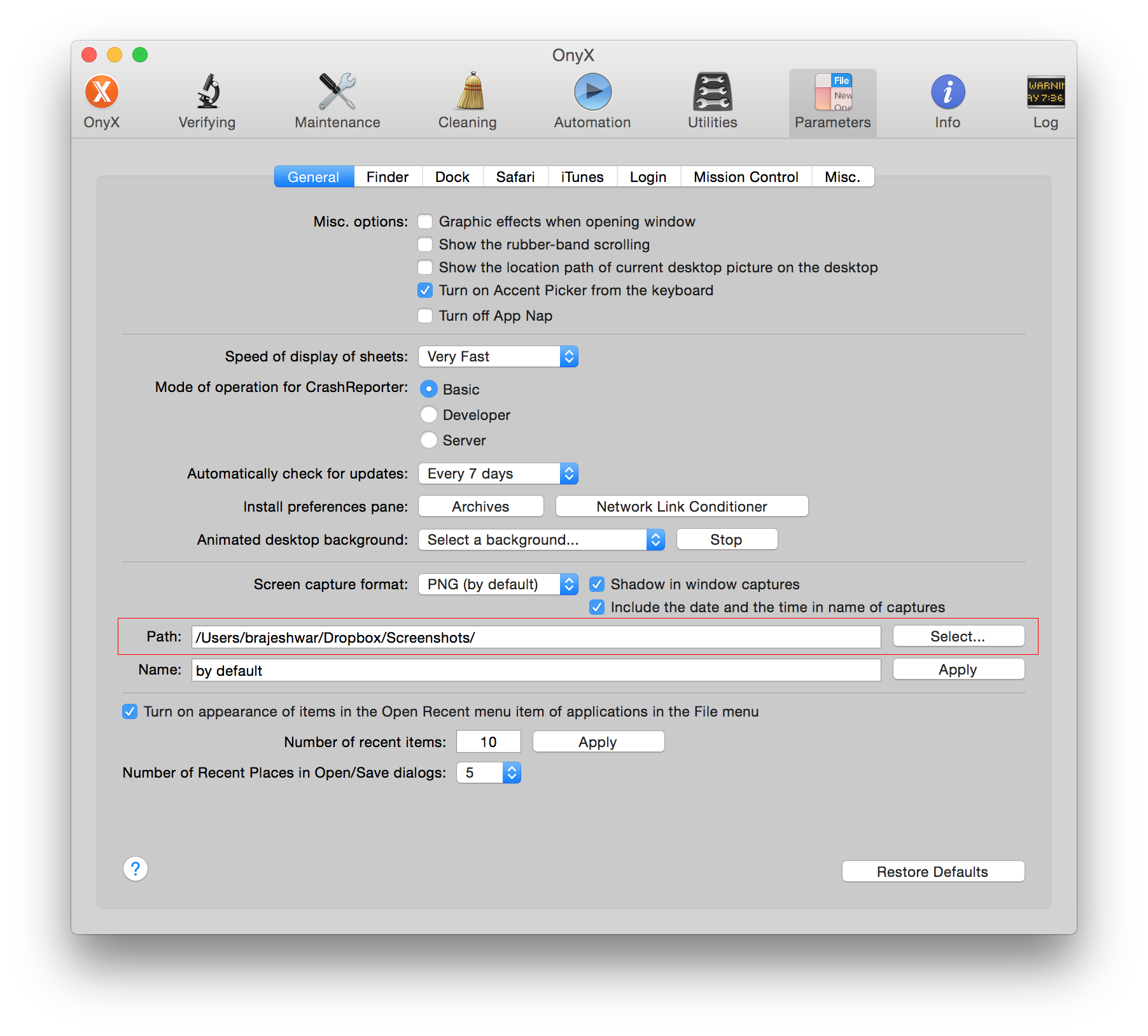
Or use a utility such as OnyX
Second, drop your OS X screenshots automatically into Dropbox's Screenshot folder.
Via the Terminal
`$ defaults write com.apple.screencapture location ~/Dropbox/Screenshots/;killall SystemUIServer`
Or use a utility such as OnyX
 I'm guessing you can do this on Windows and Linux too if you can automatically drop your screenshots to the Dropbox/Screenshots folder.
Now, the screenshots you take with your OS X is now in Dropbox and the URL is copied and ready to be pasted anywhere.
> Aside: I use [Hazel](https://www.noodlesoft.com) to clean up my Screenshots folder to remove file older than a month. You can use any of your favorite cleaning utility to clean yours to avoid Screenshots piling up your Dropbox folder.
Just in case:
- CMD + SHFT + 3 Fullscreen Screenshot.
- CMD + SHFT + 4, then drag crosshair - Screenshot of your desired area.
- CMD + SHFT + 4, then Spacebar - Screenshot specific app, dialog boxes, etc.
I'm guessing you can do this on Windows and Linux too if you can automatically drop your screenshots to the Dropbox/Screenshots folder.
Now, the screenshots you take with your OS X is now in Dropbox and the URL is copied and ready to be pasted anywhere.
> Aside: I use [Hazel](https://www.noodlesoft.com) to clean up my Screenshots folder to remove file older than a month. You can use any of your favorite cleaning utility to clean yours to avoid Screenshots piling up your Dropbox folder.
Just in case:
- CMD + SHFT + 3 Fullscreen Screenshot.
- CMD + SHFT + 4, then drag crosshair - Screenshot of your desired area.
- CMD + SHFT + 4, then Spacebar - Screenshot specific app, dialog boxes, etc.